SignalForge Recovery EA: setup & inputs guide (MT5)
The complete walkthrough for SignalForge Recovery (SFRecovery EA): install it from MQL5 Market, quickstart with the Guardian presets, configure the four inputs that matter first, and read every group of the F7 panel with real screenshots — including the EXIT COST BUFFER (anti-drain), ZONE dual-side grid, CONTROL take-over mode and daily loss breaker. v3.32 update: protections survive reloads, the worst case is summed account-wide across every instance, the panel projects the grid margin, Telegram alerts are fixed, and an OBSERVE cycle log is available; all inputs are covered in the full inputs manual. New to the product? Start with the SFRecovery EA product page or the MQL5 Market listing (free, full version).
SignalForge Recovery is a position manager for MT5: it has no entry signal. Install it from MQL5 Market, attach it to the chart of the symbol in drawdown, load a Guardian preset, then set your magic numbers, the loss trigger ("Launch when floating loss >= $"), the basket target ("Close whole basket at this PROFIT") and the hard cap ("Hard kill: flatten basket if loss >= $"). Free, no subscription, no token.
Step 1 — Install from MQL5 Market
SignalForge Recovery is sold only on the MQL5 Market as a free download — no subscription, no license token, nothing to whitelist. In MetaTrader 5 open the Market tab, search for SFRecovery and click Download (free) next to SFRecovery EA. The EA appears in the Navigator under Expert Advisors.
Before going live you can run it in the Strategy Tester — section 06 below explains exactly what the tester mode does (and what it does not).
Step 2 — Attach to a chart + quickstart with the Guardian presets
Drag the EA onto the chart of the symbol you want it to manage. One chart per symbol: the EA only manages positions of the symbol of the chart it is attached to. Make sure AutoTrading is enabled (the green button in the MT5 toolbar).
The fastest correct setup is a Guardian preset: press F7 → Load → pick the .set file → OK. The presets are calibrated for a 10,000 USD account:
XAUUSD Guardian (0.01 lot) · XAUUSD 10k .set · CONTROL 10k
A hedging account is recommended: the lock and the pair-based partial close need opposite positions to coexist. On netting accounts both features auto-disable (details in the FAQ).
Step 3 — The 4 inputs to configure first
The EA ships with sane defaults, but these four decide what it manages, when it starts, where it exits and how much it can lose. Set them before anything else.
"Launch when floating loss >= $", "Close whole basket at this PROFIT" and "Hard kill: flatten basket if loss >= $" are absolute $ amounts. The Guardian preset is calibrated for 0.01 lot on XAUUSD on a 10,000 USD account; if you manage 10x that size, multiply those three values by 10.
The full input tour (F7 panel)
EVERY GROUP OF THE SETTINGS WINDOW, WITH THE REAL SCREENSHOTS. DEFAULTS VERIFIED AGAINST v3.24.
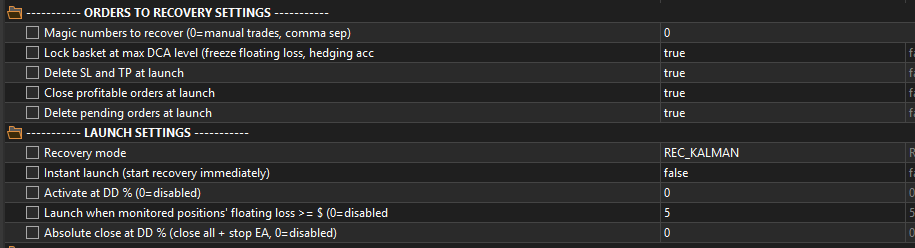
Orders to recovery + Launch settings
What the EA manages and when a cycle starts. The losing side is auto-detected (the side with the bigger floating loss) and only that side is averaged; opposite-side positions are consolidated (closed) at launch.
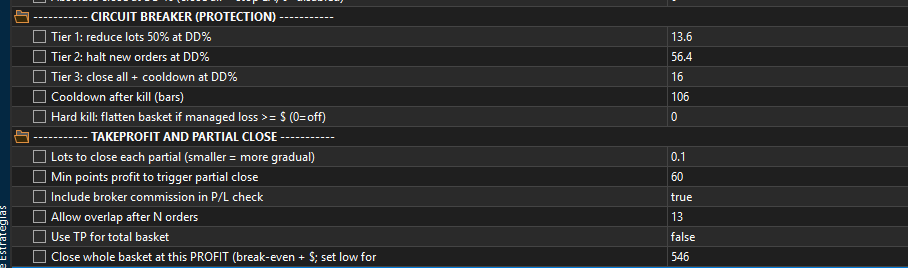
Circuit breaker + Take profit and partial close
The three-tier equity protection and the exit engine. Partial closes are pair-based: a profitable recovery leg is paired with the worst losing leg and a chunk of both is closed only when the pair nets ≥ +$0.10 — every partial books a net gain by construction.
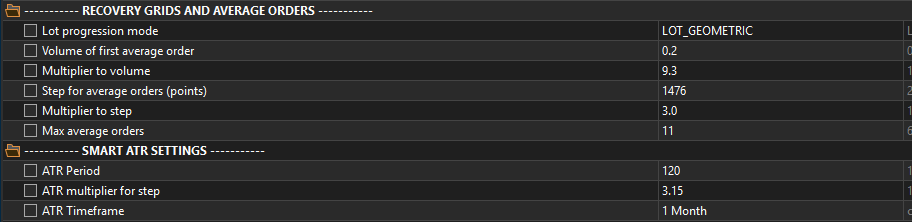
Recovery grids and average orders + Smart ATR
The ladder itself: how big each averaging order is and how far apart they sit. In REC_ATR and REC_KALMAN modes the step is ATR × multiplier instead of fixed points.
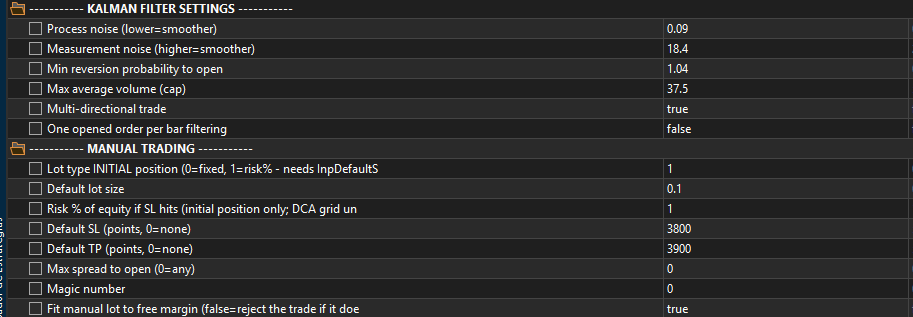
Kalman filter + Manual trading
The Kalman trend filter only gates new initial entries — it never blocks DCA orders, closes or locks. The manual-trading group controls the Buy/Sell pad on the chart panel.
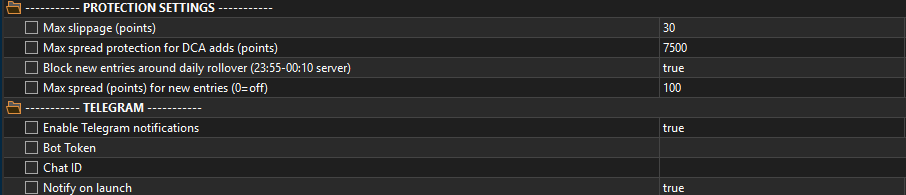
Protection settings + Telegram
Execution hygiene (slippage, spread, rollover) and the optional notifications. Telegram uses your own bot token and chat ID and requires whitelisting api.telegram.org in Tools → Options → Expert Advisors; with both fields empty the EA is fully functional and sends nothing.
Panel + Strategy Tester
The last group is tester-only: these inputs never act on a live or demo account. They exist so you can watch a full recovery cycle in the Strategy Tester — details and the honest disclaimer in section 06.

The on-chart panel, block by block
The EA draws a live dashboard on the chart (minimizable). This is what it looks like running inside the Strategy Tester with a cycle open:
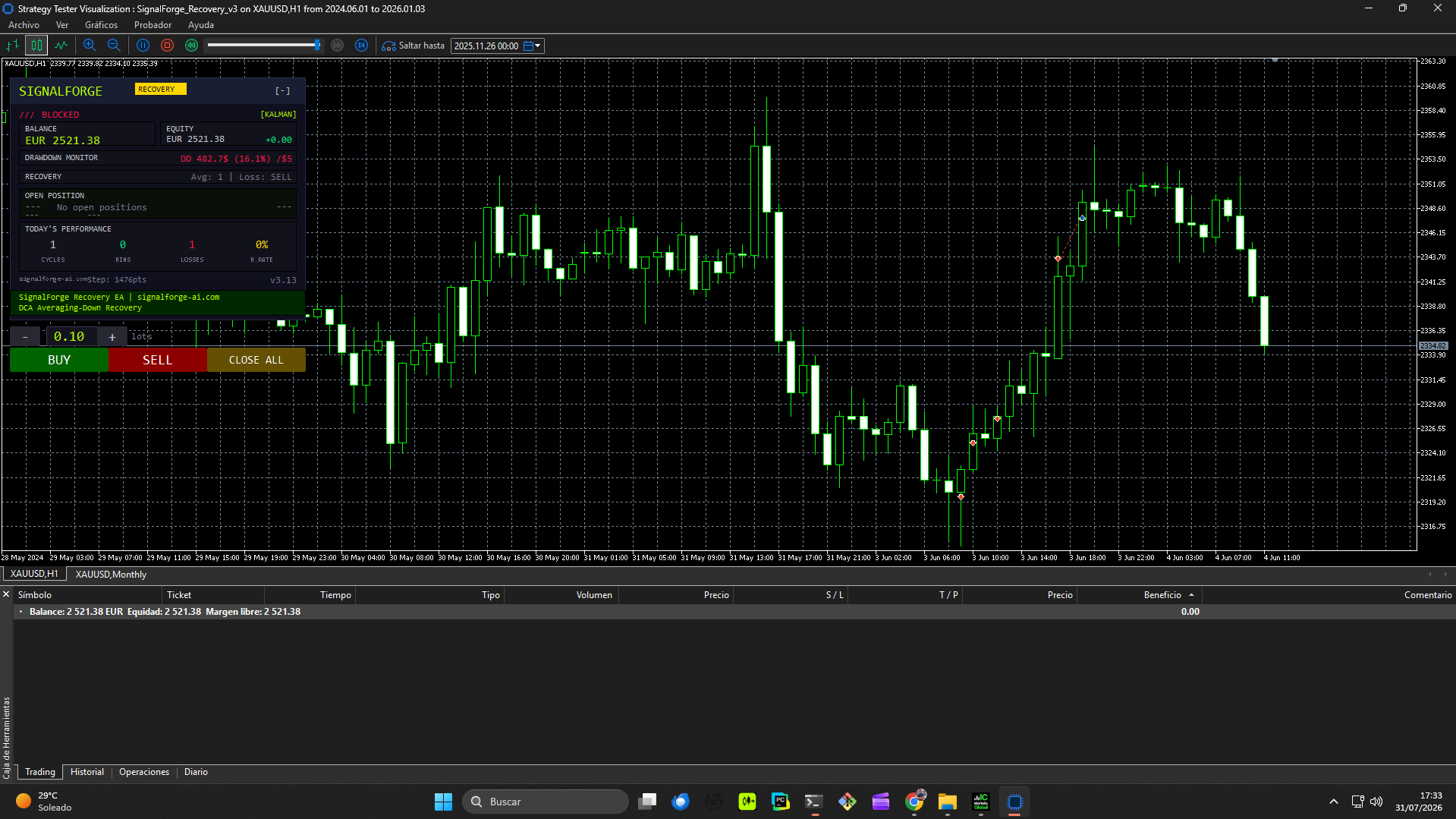
The cyan dashed line on the chart is the basket break-even (volume-weighted average of the DCA side); the basket exits at that break-even + "Close whole basket at this PROFIT". It has nothing to do with the partial closes.
The Strategy Tester demo — read this before trusting the curve
You can run the EA in the MT5 Strategy Tester before going live. With "Auto-open losing trades in tester"=true the EA opens synthetic positions only inside the tester (cadence: every "Open trade every N bars" bars; lot: "Tester: initial lot for the pad"; direction: "Direction (0=random, 1=buy, 2=sell)" 0=random / 1=buy / 2=sell) so you can watch full recovery cycles end to end.
Those entries are generated by the EA itself, not by a strategy. A tester equity curve is therefore "synthetic entries + this manager" — it shows how the recovery mechanics behave, not a promise of profit. Always set "Auto-open losing trades in tester"=false before any live or demo account, and run your tester pass on a NETTING demo account (recommended).
And the DCA honesty note, because it matters more than any setting: averaging down increases exposure while losing. It converts many small losses into fewer, larger ones. Size the grid and the hard cap ("Hard kill: flatten basket if loss >= $") so that the worst cycle you allow is a loss you accept — before the first cycle starts, not during it. To dimension the zone itself (boundaries and lot doubling between them), see the zone recovery math guide.
FAQ
THE FIVE QUESTIONS EVERY NEW USER ASKS.
Does SignalForge Recovery open trades on its own?
No. It is a position manager with no entry signal: it watches positions you already opened (manual trades, or other EAs via their magic numbers) and manages them in drawdown with an averaging-down cycle. The only exception is the Strategy Tester, where "Auto-open losing trades in tester" opens synthetic positions so you can watch a full cycle — those entries are generated by the EA itself, not by a strategy.
Do I need a hedging or a netting account?
Hedging is recommended for live use: the lock ("Lock basket at max DCA level") and the pair-based partial close both need opposite positions to coexist. On netting accounts the lock is auto-disabled and the pair-based partial close is disabled too, because netting merges positions into one. For the Strategy Tester demo pass, a NETTING demo account is the recommended choice.
Can I choose which side the EA recovers?
No. At launch the EA auto-detects the side with the bigger floating loss and averages only that side; positions on the opposite side are consolidated (closed) at launch. When a cycle ends (basket TP, money stop or circuit breaker), the EA rearms and the next cycle re-derives the side from scratch.
What is the cyan (blue) dashed line on the chart?
It is the basket break-even: the volume-weighted average price of the DCA side. The whole basket closes when its combined P/L reaches that break-even plus "Close whole basket at this PROFIT". It has nothing to do with the partial closes.
Do I need Telegram for the EA to work?
No. Telegram notifications are optional and use your own bot token and chat ID (with api.telegram.org whitelisted in Tools → Options → Expert Advisors). With both fields empty the EA is fully functional and simply sends nothing.
The product landing covers what the EA is, the three recovery modes and how it compares to AW Recovery and the old MT4 recovery tools: SignalForge Recovery EA (MT5). If you are weighing AW Recovery specifically, see our AW Recovery alternative guide for MT5.
Benjamin SF is the founder of SignalForge and an expert in trading algorithm automation. He builds and operates the SignalForge bridge for prop-firm traders and maintains its public latency benchmark (~0.5 s median from webhook to confirmed order, measured 19–23 Sep 2026).
Recover your drawdowns with rules, not hope
SFRecovery EA v3.32 on MQL5 Market: free, full version, no subscription, no token.
SignalForge Recovery is a position-management tool. It does not provide investment advice or entry signals. Averaging down increases exposure while losing; it converts many small losses into fewer, larger ones. Trading involves risk of loss.